How to use
Install, switch languages, and fix subtitle issues — step by step.
Install and get started
Installing from the Chrome Web Store takes about a minute.
Step by step
- Start from veolang.comClick the "Add to Chrome" button at the top — it takes you to the Chrome Web Store. You can also go directly to the store.
- Install from the Chrome Web StoreOn the store page, click "Add to Chrome" once more. When the permission dialog appears, choose "Add extension".
- The welcome page opens automaticallyAfter install, Veolang opens its welcome page in a new tab. The interface language is auto-detected (12 languages supported).
- (Optional) Pin to the toolbarClick the puzzle icon in the Chrome toolbar → press the pin next to Veolang. Now the popup is one click away.
- Open any YouTube videoSubtitles are auto-translated into your language without any extra setup. It just works.
You start on the Free plan (10 videos per day). See the pricing page for daily limits and Lite launch info.
Change subtitle language
Switch the subtitle language to any of 12 from the popup.
Step by step
- Open the Veolang popupClick the Veolang icon in the Chrome toolbar. If you don't see it, click the puzzle icon → Veolang.
- Find the "Translation language" sectionAt the top of the popup there is a "Translation language" dropdown showing your current language.
- Pick one of 12 languagesOpen the dropdown to see all 12 options: 한국어 · English · 日本語 · Tiếng Việt · ไทย · Bahasa Indonesia · Español · Français · Deutsch · Português · 简体中文 · 繁體中文.
- Selection is saved instantlyNo save button — your choice is saved the moment you click a language.
- Refresh your YouTube tabFor tabs that were already open, press F5 or Ctrl+R to apply the new language. New videos pick it up automatically.
The source subtitle can be any language YouTube provides — Veolang auto-translates it into one of the 12 supported target languages.
When subtitles don’t appear
What to check when subtitles don’t show — most issues clear within minutes.
Step by step
- Check that the video has subtitlesThe CC button at the bottom-right of the YouTube player should be active. If it's greyed out or missing, the video has no subtitle track at all.

A video with subtitles — the CC button is white (active). - Press <kbd>C</kbd> to toggle captionsClick the video once, then press C to toggle captions. Use the same trick if captions don't come back after an ad.
- Make sure the extension is enabledOpen the Veolang popup and check that "Enable auto-translation" is on.
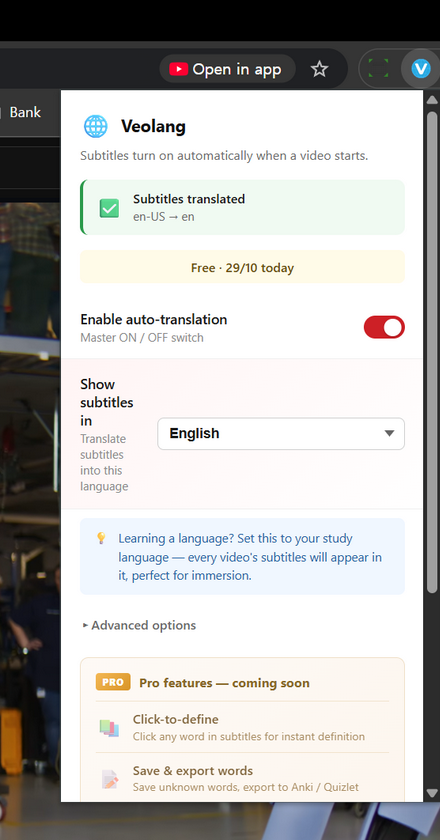
The "Enable auto-translation" toggle at the top of the popup — it should be on. - Refresh the pageAfter changing any setting, press F5 to apply it.
- Wait 5–10 minutes (YouTube bot detection)Switching subtitle languages too often — or jumping between videos quickly — makes YouTube treat the calls as an automated bot and refuses auto-translation requests from your IP for a few minutes (HTTP 429 response). This is YouTube's own bot protection (rate limit) and no extension can work around it. The most reliable fix is simply to wait. The block usually clears in 5–10 minutes; refresh the same video and captions come back.
- (Optional) Try a different browserYouTube's rate limit sometimes applies per browser session and cookies. If Chrome is blocked, opening the same video in Microsoft Edge (or another Chromium-based browser) often works. Veolang installs in Edge the same way as in Chrome. That said, simply waiting 5–10 minutes is still the most stable fix.
- Videos without any subtitlesIf a video has no subtitle track at all (not even auto-captions), there is nothing to translate. If the CC button at the bottom-right of the YouTube player is greyed out or missing, that video simply does not provide subtitles.
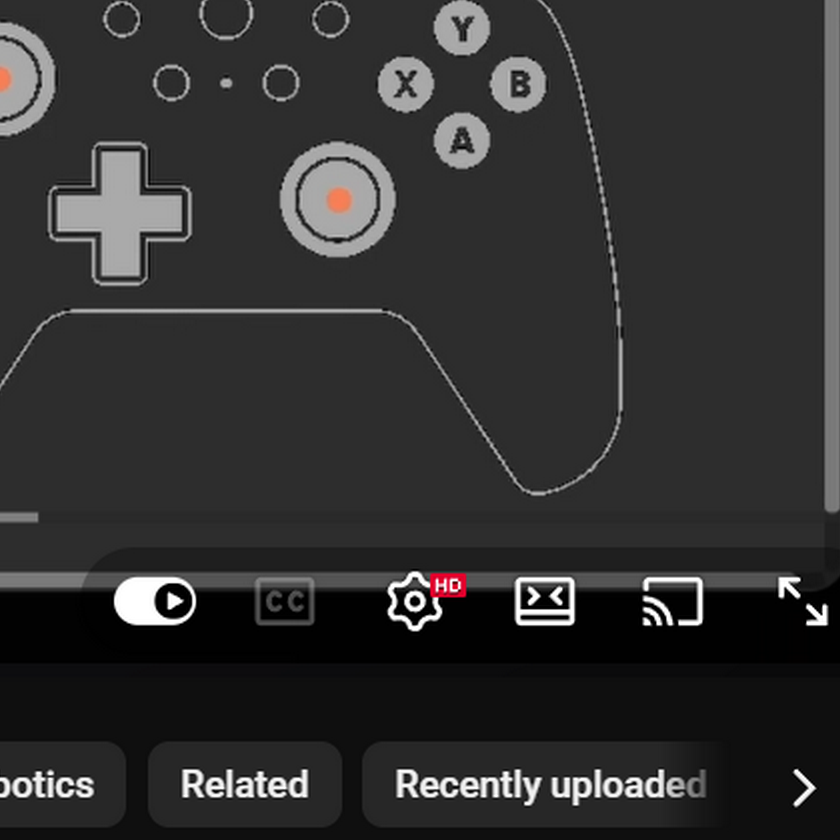
A video with no subtitle track — the CC button is greyed out.
Still stuck? Email support@veolang.com with the video URL, or browse the FAQ for similar cases.